v1.0.0 · free forever · no account

Xbox Controller
as your mouse.

Plug in an Xbox, DualShock, or DualSense controller and use it like a mouse across your entire Windows desktop. Move the cursor with the left stick, click with the A button or triggers, scroll with the right stick — perfect for controlling your PC from the couch or TV without reaching for a keyboard.

No ads or watermark100% offline alwaysFree to use foreverv1.0.0
Stick to cursorClick with buttonsScroll both waysWorks on desktopFree offline
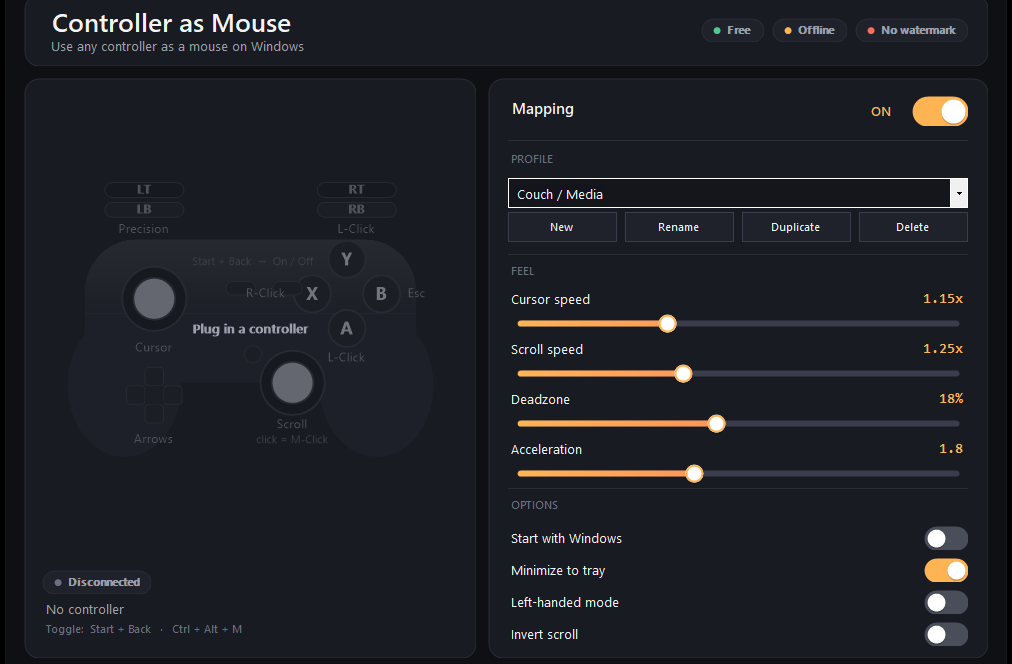
Xbox Controller as Mouse app window on Windows
Why choose it

Why map your controller to the desktop.

A game controller is more comfortable than a mouse when you're sitting back, and it's always within reach on the couch or armrest.

01

Couch browsing without the desk

Watch a show, browse the web, check email — all from your comfortable seat without moving to a desk or hunting for a wireless mouse. Your controller is already in your hands.

02

One-handed or accessibility-friendly control

Use the left stick alone with left-handed mode, or hold the controller naturally in both hands. Good for limited mobility or when one hand is occupied.

03

No extra hardware or setup

Your existing Xbox or DualSense controller works immediately. No drivers to install, no configuration files to edit, no account needed.

04

Precision mode for fine work

Pull the left trigger to slow down the cursor for detailed clicks or text selection. Release it and you're back to normal speed.

Quick start

Install and start using your controller.

You'll be moving the cursor in about a minute.

  1. Download and extractGrab the zip file and extract it to a folder on your computer.
  2. Run the installerOpen the installer file and complete the quick setup — it takes just a few seconds.
  3. Plug in your controllerConnect your Xbox, DualShock, or DualSense pad via USB or wireless receiver and the app detects it automatically.
  4. Move the left stick and clickThe cursor follows your stick input. Press A to click, X for right-click, and use the right stick to scroll.
Setup help

Questions about your controller setup.

Will this work in games?

The software sends standard mouse and keyboard input, just like a regular input device would. Whether a game allows mouse control is up to the game itself — check its settings. Competitive games with anti-cheat software may have restrictions on input methods; that's a game decision, not ours.

Do I need to restart Windows or have admin rights?

No. The app installs normally and runs as your user account. It can optionally launch at startup without requiring special permissions.

Can I customize the button mapping?

The default mapping is fixed, but you can choose between preset profiles — Couch / Media, Precision, and Left-handed — each tuned for a specific use. You can also create and save your own profiles with custom sensitivity settings.

What if I unplug the controller or connect a different one?

The app detects hot-plug instantly. Disconnect one pad and plug in another, and it's recognized immediately with no restart needed.

How do I turn the mapping on or off without closing the app?

Press Start + Back on the controller, or use Ctrl + Alt + M on the keyboard. The app stays running in the system tray and remembers your choice next time you launch.

Can I use this with a DualShock 4 or DualSense?

Yes. Xbox controllers, DualShock 4, and DualSense all work out of the box via the built-in Windows controller support. No special drivers needed.

Is there a watermark, ads, or subscription?

No. The app is completely free, runs offline, and contains no ads or watermarks. Download it once and use it forever.
Details

What you are downloading.

Version1.0.0
PlatformWindows 10 and 11, 64-bit
InstallQuick download, no account
LicenseMIT, source on GitHub
PriceFree, no account
LanguageEnglish
What it does
Inside the appXbox Controller as Mouse window

Your controller becomes a precise pointing device.

The left stick moves the cursor with built-in acceleration — fine and steady near the center, snappy at the edges so you're not stuck crawling across the screen. The right stick scrolls both vertically and horizontally, and the A button holds to drag windows or select text just like a real mouse.

Smooth stick accelerationCursor stays responsive whether you're making small adjustments or sweeping across the screen.
Multi-direction scrollingRight stick scrolls up and down in web pages, left and right in horizontal layouts.
Full desktop controlWorks in browsers, media players, file explorer, and any window — not limited to games or specific apps.

Stop reaching for a mouse.

Your controller is ready to take over desktop duty right now.

Download for Windows
Latest release · v1.0.0

Xbox Controller as Mouse guides